# Introducing ssl-toolkit
> A comprehensive SSL/TLS diagnostic tool built in Rust that I created to replace my ever-growing document of random certificate checking notes.
- Canonical: https://www.russ.cloud/2026/02/01/introducing-ssl-toolkit/
- Published: 2026-02-01
- Author: Russ McKendrick
- Tags: tools, security, macos, linux, code
---
During the day job, I spend a fair amount of time checking SSL certificates - validating chains, comparing certs across different IPs, checking expiry dates, and generally troubleshooting TLS issues. Over the years, I'd built up a long document filled with random notes, one-liners, and half-remembered OpenSSL incantations. It worked, but it wasn't exactly elegant.
So I decided to consolidate all of that into a vibe-coded tool. The result is **ssl-toolkit**, a comprehensive SSL/TLS diagnostic tool built in Rust.
## What it does
At its core, ssl-toolkit performs the checks I find myself doing repeatedly: DNS resolution across multiple providers, TLS handshake analysis, certificate chain validation, WHOIS lookups, and cipher suite enumeration. It then rolls everything up into an overall security grade (A+ through F) so you can quickly gauge the health of a certificate.
The tool supports both an interactive mode with a guided menu system and a non-interactive mode for scripting and CI/CD pipelines. There's also JSON output if you need to parse results programmatically.
## Installation
The easiest way to install ssl-toolkit on macOS is via Homebrew:
```bash frame="terminal" title="Installing - macOS"
brew install russmckendrick/tap/ssl-toolkit
```
For Linux, you can download the latest release directly. The following command detects your architecture and downloads the appropriate binary:
```bash frame="terminal" title="Installing - Linux"
ARCH=$(uname -m | sed 's/x86_64/amd64/;s/aarch64/arm64/')
curl -sL "https://github.com/russmckendrick/ssl-toolkit/releases/latest/download/ssl-toolkit-linux-${ARCH}" -o ssl-toolkit
chmod +x ssl-toolkit
sudo mv ssl-toolkit /usr/local/bin/
```
On Windows, use PowerShell to download and install:
```powershell frame="terminal" title="Installing - Windows"
Invoke-WebRequest -Uri "https://github.com/russmckendrick/ssl-toolkit/releases/latest/download/ssl-toolkit-windows-amd64.exe" -OutFile "ssl-toolkit.exe"
```
You can then move `ssl-toolkit.exe` to a directory in your PATH, or run it directly from the download location.
All releases are available on the [GitHub releases page](https://github.com/russmckendrick/ssl-toolkit/releases).
## Interactive mode
Running ssl-toolkit without any arguments launches an interactive menu:
```bash frame="terminal" title="Interactive mode"
ssl-toolkit
```
This presents a top-level menu with options to check a domain, inspect certificate files, verify certificate and key pairs, or convert between certificate formats. Each option guides you through the required inputs and displays results in a scrollable pager.
I went with a Tokyo Night Storm colour scheme for the interface because, well, it looks nice and matches my terminal setup. The pager supports the usual navigation keys - arrow keys, `j`/`k` for vim users, `Space` for page down, and `g`/`G` to jump to the start or end.
## Checking a domain
For a quick check, you can pass the domain directly:
```bash frame="terminal" title="Checking a domain - Basics"
ssl-toolkit -d github.com --non-interactive
```
This runs through all the checks and outputs a detailed report covering DNS resolution from multiple providers (Google, Cloudflare, OpenDNS, and your system resolver), TCP connectivity, TLS protocol and cipher analysis, certificate chain validation, and WHOIS information.
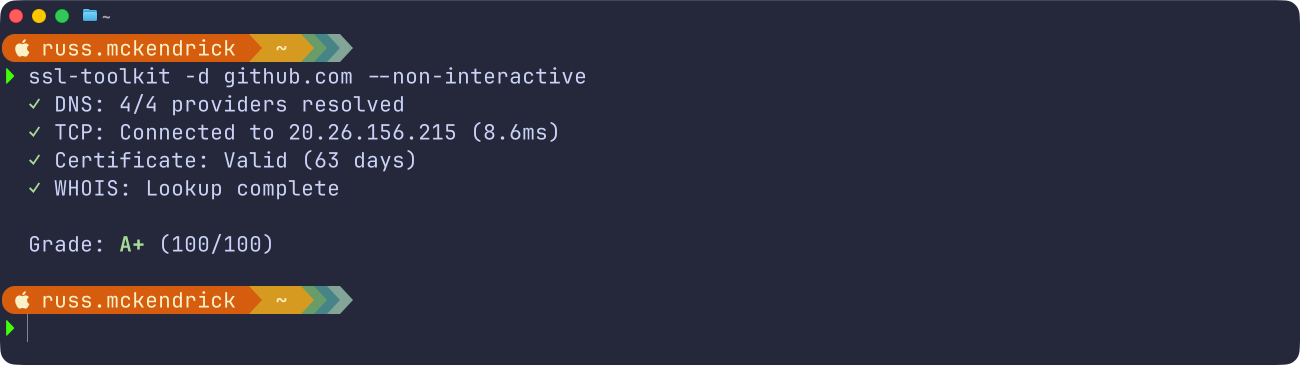 The tool compares certificates across all resolved IPs to flag any inconsistencies - useful when you're dealing with load balancers or CDNs where different endpoints might be serving different certificates.
If you just want the grade without all the detail:
```bash frame="terminal" title="Checking a domain - Quiet"
ssl-toolkit -d example.com --quiet
```
## Certificate file operations
Beyond live domain checks, ssl-toolkit can work with certificate files directly. This is handy when you're preparing certificates for deployment or troubleshooting issues with certificate bundles.
To inspect a certificate file:
```bash frame="terminal" title="Certificate file operations - Info"
ssl-toolkit cert info cert.pem
```
To verify that a certificate and private key match:
```bash frame="terminal" title="Certificate file operations - Check Key & Cert"
ssl-toolkit cert verify --cert cert.pem --key key.pem
```
To validate a certificate chain against a hostname:
```bash frame="terminal" title="Certificate file operations - Hostname"
ssl-toolkit cert verify --chain fullchain.pem --hostname example.com
```
And to convert between formats:
```bash frame="terminal" title="Certificate file operations - Convert"
# PEM to DER
ssl-toolkit cert convert cert.pem --to der -o cert.der
# Create a PKCS#12 bundle
ssl-toolkit cert convert --to p12 --cert cert.pem --key key.pem
```
## CI/CD integration
The tool uses meaningful exit codes for scripting: `0` for all checks passed, `1` for warnings (like a certificate expiring within 30 days), and `2` for failures (expired certificate, connection failed, etc.).
Combined with JSON output, this makes it straightforward to integrate into monitoring or deployment pipelines:
```bash frame="terminal" title="CI/CD integration - JSON"
ssl-toolkit -d www.russ.cloud --json --non-interactive
```
This gives you the following output:
```json frame="code" title="The full output" showLineNumbers
{
"domain": "www.russ.cloud",
"ip": "104.21.67.197",
"port": 443,
"grade": "A+",
"score": 100,
"report": {
"domain": "www.russ.cloud",
"ip": "104.21.67.197",
"port": 443,
"grade": "APlus",
"score": 100,
"dns_result": {
"title": "DNS Resolution",
"status": "Pass",
"summary": "4/4 providers resolved successfully",
"details": [
{
"Table": {
"title": "Provider Results",
"headers": [
"Provider",
"Status",
"IP Addresses",
"Time"
],
"rows": [
[
"System",
"✓ OK",
"172.67.180.37, 104.21.67.197",
"2ms"
],
[
"Google",
"✓ OK",
"104.21.67.197, 172.67.180.37",
"9ms"
],
[
"Cloudflare",
"✓ OK",
"104.21.67.197, 172.67.180.37",
"12ms"
],
[
"OpenDNS",
"✓ OK",
"104.21.67.197, 172.67.180.37",
"7ms"
]
]
}
}
],
"test_steps": [
{
"description": "System resolved to 172.67.180.37, 104.21.67.197",
"status": "Pass",
"details": null
},
{
"description": "Google resolved to 104.21.67.197, 172.67.180.37",
"status": "Pass",
"details": null
},
{
"description": "Cloudflare resolved to 104.21.67.197, 172.67.180.37",
"status": "Pass",
"details": null
},
{
"description": "OpenDNS resolved to 104.21.67.197, 172.67.180.37",
"status": "Pass",
"details": null
}
],
"recommendations": []
},
"tcp_result": {
"title": "TCP Connectivity",
"status": "Pass",
"summary": "Connection to 104.21.67.197:443 successful (140.6ms)",
"details": [
{
"KeyValue": {
"title": "Connection Details",
"pairs": [
[
"Target IP",
"104.21.67.197"
],
[
"Port",
"443"
],
[
"Status",
"Connected"
],
[
"Latency",
"140.6ms"
]
]
}
}
],
"test_steps": [
{
"description": "TCP connection to 104.21.67.197:443 established",
"status": "Pass",
"details": null
}
],
"recommendations": []
},
"ssl_result": {
"title": "SSL/TLS Protocol",
"status": "Pass",
"summary": "Protocol: TLS 1.3, Cipher: TLS13_AES_256_GCM_SHA384",
"details": [
{
"KeyValue": {
"title": "Protocol Information",
"pairs": [
[
"Protocol",
"TLS 1.3"
],
[
"Cipher Suite",
"TLS13_AES_256_GCM_SHA384"
],
[
"Key Exchange",
"Unknown"
],
[
"Authentication",
"Unknown"
],
[
"Encryption",
"AES-256-GCM"
],
[
"MAC",
"SHA-384"
],
[
"Secure Renegotiation",
"Supported"
],
[
"OCSP Stapling",
"Supported"
]
]
}
}
],
"test_steps": [
{
"description": "TLS handshake completed successfully",
"status": "Pass",
"details": null
},
{
"description": "TLS 1.3 is a secure protocol",
"status": "Pass",
"details": null
},
{
"description": "Cipher suite is secure",
"status": "Pass",
"details": null
}
],
"recommendations": []
},
"certificate_result": {
"title": "Certificate Validity",
"status": "Pass",
"summary": "Certificate valid for 85 days",
"details": [
{
"KeyValue": {
"title": "Certificate Information",
"pairs": [
[
"Subject",
"CN=russ.cloud"
],
[
"Issuer",
"C=US, O=Google Trust Services, CN=WE1"
],
[
"Serial Number",
"BD:DA:2A:54:3E:86:79:B0:11:09:52:51:16:1E:F8:AF"
],
[
"Valid From",
"2026-01-28 15:25:04 UTC"
],
[
"Valid Until",
"2026-04-28 16:25:02 UTC"
],
[
"Public Key",
"1.2.840.10045.2.1 (2048 bits)"
],
[
"Signature Algorithm",
"1.2.840.10045.4.3.2"
],
[
"Thumbprint (SHA-256)",
"BB:32:6B:8B:E2:EA:12:BD:9D:93:8B:98:87:F2:64:E7:77:E1:63:B1:13:E9:79:C5:F1:26:DE:A0:34:94:56:F5"
]
]
}
},
{
"List": {
"title": "Subject Alternative Names",
"items": [
"russ.cloud",
"www.russ.cloud"
]
}
},
{
"CertificateChain": {
"certificates": [
{
"cert_type": "Leaf",
"subject_cn": "russ.cloud",
"issuer_cn": "WE1",
"valid_from": "2026-01-28",
"valid_until": "2026-04-28",
"days_until_expiry": 85,
"is_valid": true
},
{
"cert_type": "Intermediate",
"subject_cn": "WE1",
"issuer_cn": "GTS Root R4",
"valid_from": "2023-12-13",
"valid_until": "2029-02-20",
"days_until_expiry": 1114,
"is_valid": true
},
{
"cert_type": "Intermediate",
"subject_cn": "GTS Root R4",
"issuer_cn": "GlobalSign Root CA",
"valid_from": "2023-11-15",
"valid_until": "2028-01-28",
"days_until_expiry": 725,
"is_valid": true
}
]
}
},
{
"KeyValue": {
"title": "Revocation Status",
"pairs": [
[
"Status",
"Not Revoked"
],
[
"Check Method",
"OCSP Stapling"
],
[
"OCSP Stapling",
"Yes"
],
[
"Next Update",
"2026-02-04 15:25:04 UTC"
]
]
}
}
],
"test_steps": [
{
"description": "Certificate is within validity period",
"status": "Pass",
"details": null
},
{
"description": "Certificate is valid for hostname 'www.russ.cloud'",
"status": "Pass",
"details": null
},
{
"description": "Certificate is not revoked",
"status": "Pass",
"details": null
}
],
"recommendations": []
},
"whois_result": {
"title": "WHOIS Lookup",
"status": "Pass",
"summary": "Registered via Cloudflare",
"details": [
{
"KeyValue": {
"title": "Domain Registration",
"pairs": [
[
"Registrar",
"Cloudflare"
],
[
"Created",
"2024-07-21T14:56:30.958Z"
],
[
"Expires",
"2026-07-21T14:56:30.958Z"
],
[
"Updated",
"2024-10-29T13:59:35.573Z"
],
[
"Nameservers",
"abby.ns.cloudflare.com, rob.ns.cloudflare.com"
],
[
"Status",
"clientTransferProhibited"
]
]
}
}
],
"test_steps": [
{
"description": "WHOIS query completed",
"status": "Pass",
"details": null
},
{
"description": "Domain registered with Cloudflare",
"status": "Pass",
"details": null
},
{
"description": "Domain registration expires: 2026-07-21T14:56:30.958Z",
"status": "Pass",
"details": null
}
],
"recommendations": []
},
"timestamp": "2026-02-01T17:38:40.104701Z"
},
"cert_comparison": {
"reference_ip": "104.21.67.197",
"entries": [
{
"ip": "104.21.67.197",
"thumbprint": "BB:32:6B:8B:E2:EA:12:BD:9D:93:8B:98:87:F2:64:E7:77:E1:63:B1:13:E9:79:C5:F1:26:DE:A0:34:94:56:F5",
"subject": "CN=russ.cloud",
"issuer": "C=US, O=Google Trust Services, CN=WE1",
"days_until_expiry": 85,
"serial": "BD:DA:2A:54:3E:86:79:B0:11:09:52:51:16:1E:F8:AF",
"is_different": false,
"differences": [],
"error": null
},
{
"ip": "172.67.180.37",
"thumbprint": "BB:32:6B:8B:E2:EA:12:BD:9D:93:8B:98:87:F2:64:E7:77:E1:63:B1:13:E9:79:C5:F1:26:DE:A0:34:94:56:F5",
"subject": "CN=russ.cloud",
"issuer": "C=US, O=Google Trust Services, CN=WE1",
"days_until_expiry": 85,
"serial": "BD:DA:2A:54:3E:86:79:B0:11:09:52:51:16:1E:F8:AF",
"is_different": false,
"differences": [],
"error": null
}
],
"has_differences": false,
"summary": "All 2 IPs return identical certificates"
}
}
```
You can also generate self-contained HTML reports with embedded styles and downloadable certificate chains:
```bash
ssl-toolkit -d example.com --non-interactive -o report.html
```
## Summary
ssl-toolkit has replaced my sprawling notes document and given me a single tool for the SSL/TLS checks I do regularly. It's open source and available on GitHub:
The documentation site has more details on all the available options:
If you find yourself doing similar certificate wrangling, give it a try. And if you spot any issues or have feature suggestions, pull requests are always welcome.
The tool compares certificates across all resolved IPs to flag any inconsistencies - useful when you're dealing with load balancers or CDNs where different endpoints might be serving different certificates.
If you just want the grade without all the detail:
```bash frame="terminal" title="Checking a domain - Quiet"
ssl-toolkit -d example.com --quiet
```
## Certificate file operations
Beyond live domain checks, ssl-toolkit can work with certificate files directly. This is handy when you're preparing certificates for deployment or troubleshooting issues with certificate bundles.
To inspect a certificate file:
```bash frame="terminal" title="Certificate file operations - Info"
ssl-toolkit cert info cert.pem
```
To verify that a certificate and private key match:
```bash frame="terminal" title="Certificate file operations - Check Key & Cert"
ssl-toolkit cert verify --cert cert.pem --key key.pem
```
To validate a certificate chain against a hostname:
```bash frame="terminal" title="Certificate file operations - Hostname"
ssl-toolkit cert verify --chain fullchain.pem --hostname example.com
```
And to convert between formats:
```bash frame="terminal" title="Certificate file operations - Convert"
# PEM to DER
ssl-toolkit cert convert cert.pem --to der -o cert.der
# Create a PKCS#12 bundle
ssl-toolkit cert convert --to p12 --cert cert.pem --key key.pem
```
## CI/CD integration
The tool uses meaningful exit codes for scripting: `0` for all checks passed, `1` for warnings (like a certificate expiring within 30 days), and `2` for failures (expired certificate, connection failed, etc.).
Combined with JSON output, this makes it straightforward to integrate into monitoring or deployment pipelines:
```bash frame="terminal" title="CI/CD integration - JSON"
ssl-toolkit -d www.russ.cloud --json --non-interactive
```
This gives you the following output:
```json frame="code" title="The full output" showLineNumbers
{
"domain": "www.russ.cloud",
"ip": "104.21.67.197",
"port": 443,
"grade": "A+",
"score": 100,
"report": {
"domain": "www.russ.cloud",
"ip": "104.21.67.197",
"port": 443,
"grade": "APlus",
"score": 100,
"dns_result": {
"title": "DNS Resolution",
"status": "Pass",
"summary": "4/4 providers resolved successfully",
"details": [
{
"Table": {
"title": "Provider Results",
"headers": [
"Provider",
"Status",
"IP Addresses",
"Time"
],
"rows": [
[
"System",
"✓ OK",
"172.67.180.37, 104.21.67.197",
"2ms"
],
[
"Google",
"✓ OK",
"104.21.67.197, 172.67.180.37",
"9ms"
],
[
"Cloudflare",
"✓ OK",
"104.21.67.197, 172.67.180.37",
"12ms"
],
[
"OpenDNS",
"✓ OK",
"104.21.67.197, 172.67.180.37",
"7ms"
]
]
}
}
],
"test_steps": [
{
"description": "System resolved to 172.67.180.37, 104.21.67.197",
"status": "Pass",
"details": null
},
{
"description": "Google resolved to 104.21.67.197, 172.67.180.37",
"status": "Pass",
"details": null
},
{
"description": "Cloudflare resolved to 104.21.67.197, 172.67.180.37",
"status": "Pass",
"details": null
},
{
"description": "OpenDNS resolved to 104.21.67.197, 172.67.180.37",
"status": "Pass",
"details": null
}
],
"recommendations": []
},
"tcp_result": {
"title": "TCP Connectivity",
"status": "Pass",
"summary": "Connection to 104.21.67.197:443 successful (140.6ms)",
"details": [
{
"KeyValue": {
"title": "Connection Details",
"pairs": [
[
"Target IP",
"104.21.67.197"
],
[
"Port",
"443"
],
[
"Status",
"Connected"
],
[
"Latency",
"140.6ms"
]
]
}
}
],
"test_steps": [
{
"description": "TCP connection to 104.21.67.197:443 established",
"status": "Pass",
"details": null
}
],
"recommendations": []
},
"ssl_result": {
"title": "SSL/TLS Protocol",
"status": "Pass",
"summary": "Protocol: TLS 1.3, Cipher: TLS13_AES_256_GCM_SHA384",
"details": [
{
"KeyValue": {
"title": "Protocol Information",
"pairs": [
[
"Protocol",
"TLS 1.3"
],
[
"Cipher Suite",
"TLS13_AES_256_GCM_SHA384"
],
[
"Key Exchange",
"Unknown"
],
[
"Authentication",
"Unknown"
],
[
"Encryption",
"AES-256-GCM"
],
[
"MAC",
"SHA-384"
],
[
"Secure Renegotiation",
"Supported"
],
[
"OCSP Stapling",
"Supported"
]
]
}
}
],
"test_steps": [
{
"description": "TLS handshake completed successfully",
"status": "Pass",
"details": null
},
{
"description": "TLS 1.3 is a secure protocol",
"status": "Pass",
"details": null
},
{
"description": "Cipher suite is secure",
"status": "Pass",
"details": null
}
],
"recommendations": []
},
"certificate_result": {
"title": "Certificate Validity",
"status": "Pass",
"summary": "Certificate valid for 85 days",
"details": [
{
"KeyValue": {
"title": "Certificate Information",
"pairs": [
[
"Subject",
"CN=russ.cloud"
],
[
"Issuer",
"C=US, O=Google Trust Services, CN=WE1"
],
[
"Serial Number",
"BD:DA:2A:54:3E:86:79:B0:11:09:52:51:16:1E:F8:AF"
],
[
"Valid From",
"2026-01-28 15:25:04 UTC"
],
[
"Valid Until",
"2026-04-28 16:25:02 UTC"
],
[
"Public Key",
"1.2.840.10045.2.1 (2048 bits)"
],
[
"Signature Algorithm",
"1.2.840.10045.4.3.2"
],
[
"Thumbprint (SHA-256)",
"BB:32:6B:8B:E2:EA:12:BD:9D:93:8B:98:87:F2:64:E7:77:E1:63:B1:13:E9:79:C5:F1:26:DE:A0:34:94:56:F5"
]
]
}
},
{
"List": {
"title": "Subject Alternative Names",
"items": [
"russ.cloud",
"www.russ.cloud"
]
}
},
{
"CertificateChain": {
"certificates": [
{
"cert_type": "Leaf",
"subject_cn": "russ.cloud",
"issuer_cn": "WE1",
"valid_from": "2026-01-28",
"valid_until": "2026-04-28",
"days_until_expiry": 85,
"is_valid": true
},
{
"cert_type": "Intermediate",
"subject_cn": "WE1",
"issuer_cn": "GTS Root R4",
"valid_from": "2023-12-13",
"valid_until": "2029-02-20",
"days_until_expiry": 1114,
"is_valid": true
},
{
"cert_type": "Intermediate",
"subject_cn": "GTS Root R4",
"issuer_cn": "GlobalSign Root CA",
"valid_from": "2023-11-15",
"valid_until": "2028-01-28",
"days_until_expiry": 725,
"is_valid": true
}
]
}
},
{
"KeyValue": {
"title": "Revocation Status",
"pairs": [
[
"Status",
"Not Revoked"
],
[
"Check Method",
"OCSP Stapling"
],
[
"OCSP Stapling",
"Yes"
],
[
"Next Update",
"2026-02-04 15:25:04 UTC"
]
]
}
}
],
"test_steps": [
{
"description": "Certificate is within validity period",
"status": "Pass",
"details": null
},
{
"description": "Certificate is valid for hostname 'www.russ.cloud'",
"status": "Pass",
"details": null
},
{
"description": "Certificate is not revoked",
"status": "Pass",
"details": null
}
],
"recommendations": []
},
"whois_result": {
"title": "WHOIS Lookup",
"status": "Pass",
"summary": "Registered via Cloudflare",
"details": [
{
"KeyValue": {
"title": "Domain Registration",
"pairs": [
[
"Registrar",
"Cloudflare"
],
[
"Created",
"2024-07-21T14:56:30.958Z"
],
[
"Expires",
"2026-07-21T14:56:30.958Z"
],
[
"Updated",
"2024-10-29T13:59:35.573Z"
],
[
"Nameservers",
"abby.ns.cloudflare.com, rob.ns.cloudflare.com"
],
[
"Status",
"clientTransferProhibited"
]
]
}
}
],
"test_steps": [
{
"description": "WHOIS query completed",
"status": "Pass",
"details": null
},
{
"description": "Domain registered with Cloudflare",
"status": "Pass",
"details": null
},
{
"description": "Domain registration expires: 2026-07-21T14:56:30.958Z",
"status": "Pass",
"details": null
}
],
"recommendations": []
},
"timestamp": "2026-02-01T17:38:40.104701Z"
},
"cert_comparison": {
"reference_ip": "104.21.67.197",
"entries": [
{
"ip": "104.21.67.197",
"thumbprint": "BB:32:6B:8B:E2:EA:12:BD:9D:93:8B:98:87:F2:64:E7:77:E1:63:B1:13:E9:79:C5:F1:26:DE:A0:34:94:56:F5",
"subject": "CN=russ.cloud",
"issuer": "C=US, O=Google Trust Services, CN=WE1",
"days_until_expiry": 85,
"serial": "BD:DA:2A:54:3E:86:79:B0:11:09:52:51:16:1E:F8:AF",
"is_different": false,
"differences": [],
"error": null
},
{
"ip": "172.67.180.37",
"thumbprint": "BB:32:6B:8B:E2:EA:12:BD:9D:93:8B:98:87:F2:64:E7:77:E1:63:B1:13:E9:79:C5:F1:26:DE:A0:34:94:56:F5",
"subject": "CN=russ.cloud",
"issuer": "C=US, O=Google Trust Services, CN=WE1",
"days_until_expiry": 85,
"serial": "BD:DA:2A:54:3E:86:79:B0:11:09:52:51:16:1E:F8:AF",
"is_different": false,
"differences": [],
"error": null
}
],
"has_differences": false,
"summary": "All 2 IPs return identical certificates"
}
}
```
You can also generate self-contained HTML reports with embedded styles and downloadable certificate chains:
```bash
ssl-toolkit -d example.com --non-interactive -o report.html
```
## Summary
ssl-toolkit has replaced my sprawling notes document and given me a single tool for the SSL/TLS checks I do regularly. It's open source and available on GitHub:
The documentation site has more details on all the available options:
If you find yourself doing similar certificate wrangling, give it a try. And if you spot any issues or have feature suggestions, pull requests are always welcome.